DJ Laser Lights: SoundSwitch, Wolfmix and LaserOS
DJ laser lights from your setup: LaserOS next to your DJ software, SoundSwitch and Wolfmix fixtures, or sound-reactive shows on the cube itself.
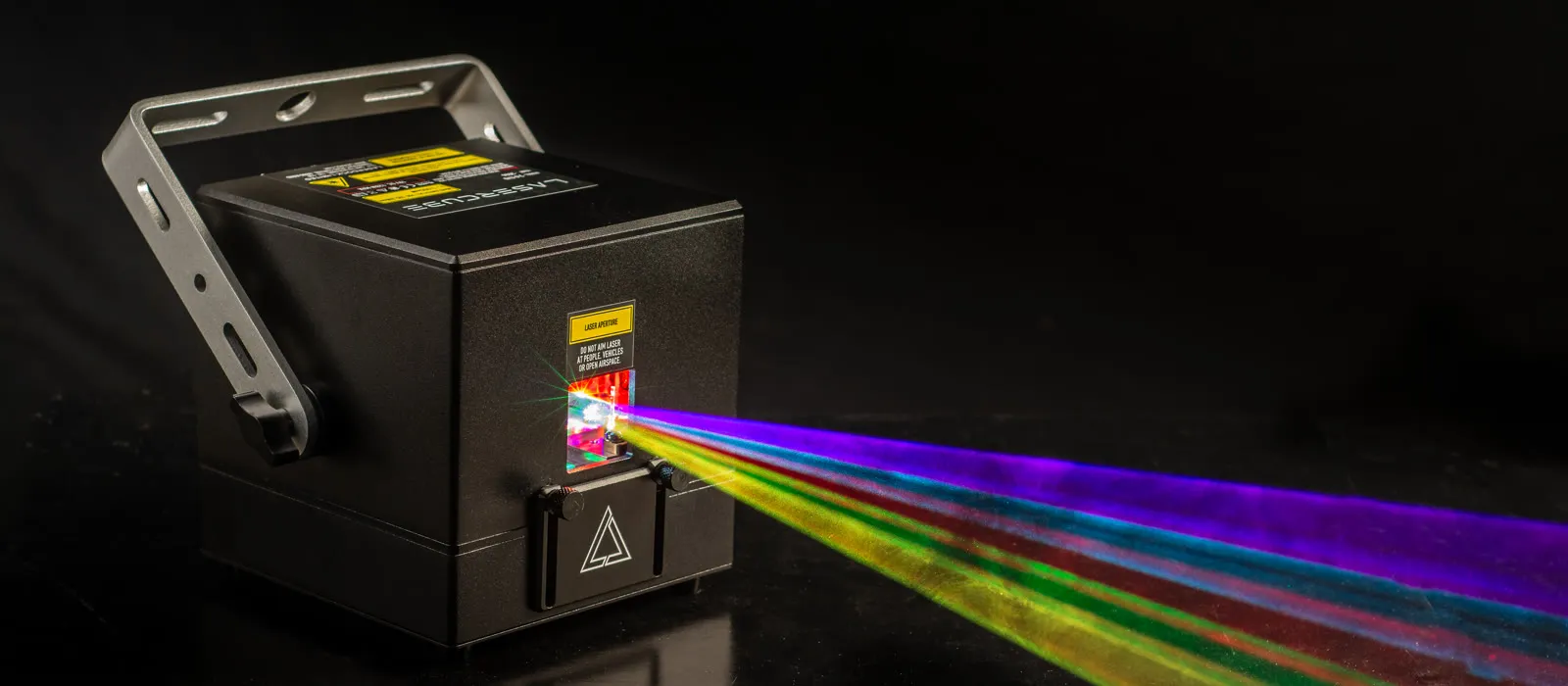
A LaserCube fits into a DJ setup in three ways: in the free LaserOS app on the same laptop as your DJ software, on its own with no laptop at all, or as a fixture in SoundSwitch, a Wolfmix or a lighting desk. This guide shows each one, and how to rig the beams over a dance floor.
1. LaserOS next to your DJ software
LaserOS runs on the same laptop as your DJ software, and every LaserCube model works with it. It comes with 75+ visualizers, 50+ dancers and 80+ effects, plus beam shows, animations and your own text and logos, and its visualizers react to the music.
- Ableton Link is built into LaserOS, so it can follow the tempo of other Link apps.
- MIDI controllers such as the APC40 MK II or APC mini MK II, plugged into the laptop, let you fire content by hand.
- For a show timed to a track, place content along the song on the LaserOS Timeline.
Our video tutorials show how, including Ableton Link.
2. No laptop: shows on the cube itself (Pro and Ultra MK2)
- Visualizer mode: 91 sound-reactive visuals built into the cube. Set the audio input to the built-in microphone, or to the 3.5 mm line input fed from your mixer, and adjust the gain to the volume. Some visualizers also follow the tempo set on the cube.
- Laser shows: ready-made shows with their own soundtrack, including an EDM category, from the microSD card that comes in the box. The cube has no speaker: the show's music comes out of its 3.5 mm audio output, to powered speakers or a mixer.
- MIDI: plug an APC40 MK II or APC mini MK II into the cube's USB port. The factory microSD card includes example mappings of some visualizers to the controller's grid buttons. LaserOS's own MIDI mappings don't carry over to the cube's standalone modes.
3. SoundSwitch, Wolfmix and lighting desks
The Pro and Ultra MK2 take DMX on their DMX In, or Art-Net over the network. Choose DMX or Art-Net as the control mode on the cube's screen. The desk or app then picks content from the playlist chosen under CUE Selection, so it plays from the microSD card.
- SoundSwitch: in the Fixture Library, search for LaserCube and add “Ultra MK2 (Chn = 16)”. In performance mode you can add patterns or animations for the cube.
- Wolfmix W1: in the Fixture Library, under Cloud, load “Lasercube Ultra MK2”. Pick the cube's animations in the GOBO section; the W1's colour pads and its own effects work with it too.
- Other desks: ChamSys and grandMA desks work too. If yours has no LaserCube fixture, build one from the 16-channel layout in the manual.
These fixtures are named after the Ultra MK2; the Pro uses the same 16-channel layout. Each cube takes 16 channels from its start address. Cubes with the same start address (and, for Art-Net, the same universe) get the same commands, and with the same playlist under CUE Selection they play the same thing.
Run the cable from the desk to the cube's DMX In, then from its DMX Out to the next device. The Ultra MK2 has full-size XLR DMX, so standard DMX cables plug straight in. The Pro uses 3.5 mm TRS jacks and needs one adapter cable per port, not included: for DMX In a 3.5 mm TRS plug to 3-pin XLR male, for DMX Out a 3.5 mm TRS plug to 3-pin XLR female. Ordinary audio cables won't work; the wiring is in the manual.
Only connect real DMX equipment. Never connect a fog machine to the DMX ports unless you're sure it's true DMX: many put mains power on their XLR socket, which damages the cube.
Rig the beams in a club
- Keep every beam at least 3 m (10 ft) above the floor wherever people may be. Set the beam block with the cube off and the key out, so nothing scans into the crowd or onto the dance floor.
- Aim at a ceiling, a wall or a backdrop above that height. Never at people, mirrors or windows, or anything reflective.
- Mount the cube so it can't be knocked out of position, and when it hangs at height, attach a safety cable through the eye bolt on the back panel.
- Haze makes beams visible. Big venues use a full-size fog or haze machine; our Nano Fogger is for smaller spaces.
- Someone should be in control of the laser the whole time it runs.
- For public shows, check your local rules.
Which LaserCube for DJs?
- Pro (3W or 6W): compact and 2.5 kg, with DMX, Art-Net, a USB MIDI port and standalone shows. It isn't sold in the USA yet.
- Ultra MK2 (6W or 10W): our most powerful model, with full-size XLR DMX. In the USA, it is the professional model we sell.
- WiFi (1.2W or 2.5W): the budget option, played from LaserOS on a phone, tablet or computer. It has no DMX, ILDA or MIDI port.
The Pro and Ultra MK2 each suit audiences of up to about 1,000 people, the WiFi up to about 500; for more, run several cubes in sync. Compare them on the models page, and see prices for your country on the LaserCube page.
A word on safety
LaserCube is a professional show laser, not a toy: never aim it at people's eyes, at audiences or at aircraft, and never at anything flammable. More in our safety tips.
Frequently asked questions
Q01Does SoundSwitch work with a LaserCube?
Yes, with the Ultra MK2 and the Pro, over DMX or Art-Net. In SoundSwitch's Fixture Library, search for LaserCube and add “Ultra MK2 (Chn = 16)”.
Q02Can the laser react to my music without a laptop?
Yes, on the Pro and Ultra MK2. In Visualizer mode they react through the built-in microphone or the 3.5 mm line input.
Q03Does LaserOS work with Ableton?
Ableton Link is built into LaserOS, so it can follow the tempo of Ableton Live and other Link apps.
Q04Which cable do I need for the Pro's DMX?
One adapter per port: a 3.5 mm TRS plug to 3-pin XLR male for DMX In, and a 3.5 mm TRS plug to 3-pin XLR female for DMX Out. Ordinary audio cables won't work.
Q05Can I aim the lasers at the dance floor?
No. Keep every beam at least 3 m (10 ft) above the floor wherever people may be, and set the beam block so nothing scans into the crowd.
See it for yourself
LaserCube is a portable, battery-powered RGB laser projector, and its show software, LaserOS, is free.
Explore the LaserCube lineup